Let night-you brief morning-you
Most alarms wake you up scattered. This one wakes you up already knowing the plan, because the voice you hear is yours, recorded the night before.
- Tonight: answer the prompt above in your own voice, then tap "Send to alarm" and pick your Save Intent shortcut.
- Set your normal alarm in the Clock app, same as any night.
- Tomorrow: the alarm rings, you stop it, and your recording plays. Your plan, your words, before autopilot takes over.
No app to install, no account, nothing leaves your phone. This page records locally and hands the file to iOS Shortcuts. Everything after that is Apple's own alarm doing what it does best.
One-time setup (10 minutes)
Three small pieces in the Shortcuts app (already on your iPhone, iOS 17 or later): one shortcut that saves the recording, one that plays it, and one automation that connects it to your alarm. Build them once and the nightly flow is three taps.
Part 1: the "Save Intent" shortcut
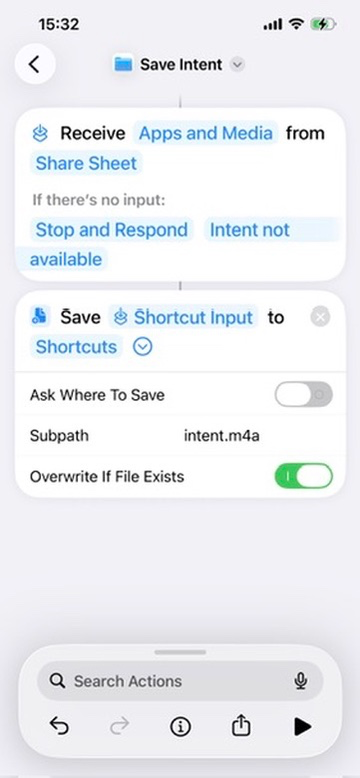
- Open Shortcuts, Shortcuts tab, tap +, rename it Save Intent (tap the name at the top)
- Add action Save File: turn off "Ask Where to Save", set Subpath to
intent.m4a, turn on Overwrite If File Exists - Now bind the input: touch and hold the pale word File in "Save File to Shortcuts", choose Select Variable, pick Shortcut Input. The action should read "Save Shortcut Input to Shortcuts" (a quick tap opens a file browser instead; it's the long-press that offers variables)
- A block appears at the top: "Receives ... from Share Sheet". Leave the type as Apps and Media or Any
- Optional but nice: set "If there's no input" to Stop and Respond with a message, so tapping the shortcut directly tells you why nothing happened. Tap Done
Part 2: the "Play Intent" shortcut
Playback lives in its own shortcut, not inside the automation. Two reasons, both learned the hard way: the automation editor hides some file actions, and a separate shortcut can be tested with one tap.
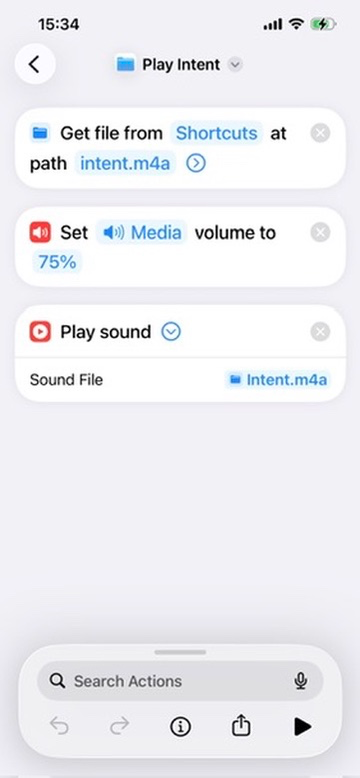
- Shortcuts tab, +, rename it Play Intent
- Add action Get File from Folder (if search can't find it, browse Apps → Files): folder Shortcuts, path
intent.m4a, exactly matching Part 1's subpath - Add action Set Volume to 75%
- Add action Play Sound. Its Sound File must be the File variable from step 2: touch and hold the Sound File field, Select Variable, pick File. Don't browse and pick the file itself; a hand-picked file goes stale once tomorrow's recording overwrites it
- Test right now: tap ▶. Your latest recording plays. Debug here until it does, before touching the automation
Part 3: the morning automation
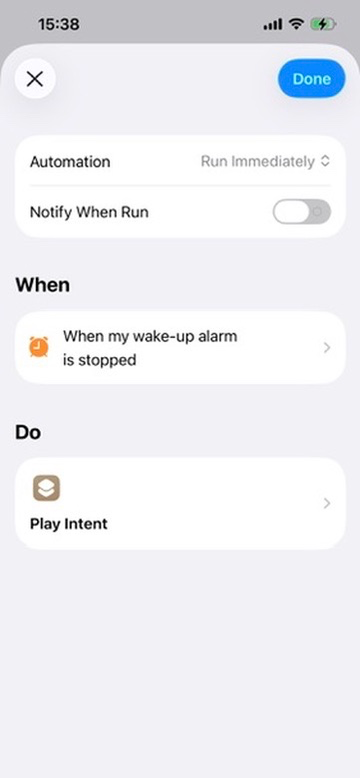
- Shortcuts app, Automation tab, tap +
- Choose trigger Alarm: When = Is Stopped, Alarm = your specific wake alarm (not "Any")
- Select Run Immediately. This is the step everyone misses; with "Run After Confirmation" nothing will play in the morning
- Add a single action: Run Shortcut, pick Play Intent. Tap Done
Part 4: test it before trusting it
- Record anything above and send it via Save Intent
- Check the file landed: Files app → iCloud Drive → Shortcuts →
intent.m4a - Tap Play Intent: your recording plays
- Set your alarm two minutes ahead, let it ring, tap Stop
- Your recording should play within a second. If steps 2 and 3 pass but this doesn't, it's the "Run Immediately" setting in Part 3
Optional: play once, then self-delete
By default the automation plays whatever recording exists, even if it's three nights old. If you'd rather have silence on mornings you didn't record, make the recording delete itself after playing:
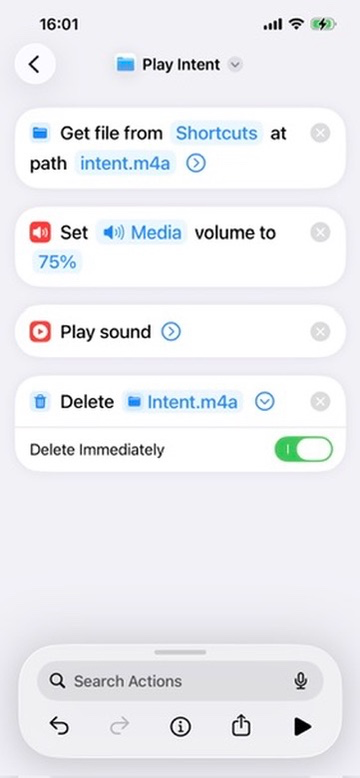
- Open Play Intent, add action Delete Files at the very end (after Play Sound)
- Its input must be the File variable from Get File: touch and hold the field, Select Variable, pick File. Browsing and picking the file itself breaks after the first deletion
- Leave Delete Immediately on (skips the 30-day Recently Deleted folder)
- In Get File from Folder, turn off Error If Not Found if the toggle exists, so empty mornings stay quiet
Result: record at night, hear it once in the morning, gone. Skip a night, and the alarm is just an alarm.
The fine print
This is a free workaround built on Apple's own parts, not a product. It has edges. Know them before you spend your ten minutes:
- Your voice plays after you stop the alarm, not instead of it. The real alarm wakes you; your recording is the briefing right after.
- Snoozing skips the voice until you finally stop the alarm.
- iPhone only, iOS 17 or later. The alarm trigger doesn't exist before that.
- Each recording replaces the last. No library, no history. One night, one intention.
- Stop the alarm on the phone, not the watch, or the automation may not fire.